

Quick Start
React Quick Start
Compatibility Notice: The filestack-react v7 requires React versions 18.3+ or 19 and Node 18+.
1 Install the Library
Get started by adding the Filestack React library to your project. Note that filestack-js is a peer dependency as of v7.
npm install filestack-react filestack-js2 Use the Picker Component
Import and use the `PickerOverlay` component in your app. Replace `YOUR_API_KEY` with your actual key.
import React from 'react';
import { PickerOverlay } from 'filestack-react';

import {
PickerOverlay,
FilestackProvider,
type PickerOverlayProps,
type PickerResponse,
type PickerOptions,
type ClientOptions
} from 'filestack-react';
const pickerOptions: PickerOptions = { maxFiles: 5, accept: ['image/*'] };
const clientOptions: ClientOptions = { cname: 'cdn.example.com' };
const handleUploadDone = (res: PickerResponse) => {
res.filesUploaded.forEach((file) => console.log(file.url));
};
const App = () => (
<FilestackProvider apikey={process.env.REACT_APP_FILESTACK_KEY!}>
<PickerOverlay
pickerOptions={pickerOptions}
clientOptions={clientOptions}
onUploadDone={handleUploadDone}
onError={(err) => console.error(err)}
/>
</FilestackProvider>
);
3 Run Your Server
Start your development server to see the Filestack picker in action.
npm startAngular Quick Start
Compatibility Notice: The
@filestack/angularv4 supports Angular 19 through 22. For Angular 18, use@filesatck/angularv3.x. The SDK declares no Node requirement of its own – your Node floor comes from your Angular major.
1 Install via NPM
The code below installs @filestack/angular and filestack-js, prompts for your API key, and writes the provider into your root configuration.
ng add @filestack/angularTo install manually, use the code below instead:
npm install @filestack/angular filestack-js@^4
Name the major explicitly. The latest tag on npm still points at the 3.x client, and the v4 client methods require 4.x.
2 Register the Provider
Add provideFilestack() to your ApplicationConfig.
// app.config.tsimport { ApplicationConfig } from '@angular/core'; import { provideFilestack } from '@filestack/angular'; export const appConfig: ApplicationConfig = { providers: [ providerFilestack ({ apikey: 'YOUR_APIKEY', options: { /* Add client config options here */ }, }), ], };
options takes the same ClientOptions as before, and is where a CNAME or a security policy goes.
Using NgModules? FilestackModule.forRoot() still works and accepts the same configuration object. It is deprecated in favor of provideFilestack() and will be removed in a future major release.
3 Add the Picker to a component
The picker components and the transform pipe are standalone. Import the one you use directly.
// app.componen.ts
import { Component } from '@angular/core';
import { PickerOverlayComponent } from '@filestack/angular';

@Component({
  selector: 'app-root',
  imports: [PickerOverlayComponent],
  templateUrl: './app.component.html',
})
export class AppComponent {
  onUploadSuccess(res: any) {
    console.log(res.filesUploaded);
  }

  onUploadError(err: any) {
    console.error(err);
  }
 }

<!-- app.component.html -->
<ng-picker-overlay
  (uploadSuccess)="onUploadSuccess($event)"
  (uploadError)="onUploadError($event)">
  <button>Upload a file</button>
</ng-picker-overlay>
No apikey input is needed – the provider already supplied it. Pass one anyway when a specific picker needs a different key or different picker options, and it wins for that instance.
The picker components are available: <ng-picker-overlay>, <ng-picker-inline>, and <ng-picker-drop-pane>.
4 Run your Server
ng serverYour app runs at http://localhost:4200
Python Quick Start
1 Installation
Install the Filestack Python SDK using pip.
pip install filestack-python2 Upload a File
Use the `Client` class to upload a file.
from filestack import Client

client = Client('<YOUR_API_KEY>')
new_filelink = client.upload(filepath='path/to/file')
print(new_filelink.url)
3 Work with Filelinks
You can perform various operations on a `Filelink` object.
# Get content
file_content = new_filelink.get_content()

# Download
size_in_bytes = new_filelink.download('/path/to/save/file')

# Overwrite
filelink.overwrite(filepath='/path/to/new/file')

# Transform
filelink.resize(width=400).flip()

# Delete
filelink.delete()
Java Quick Start
1 Installation
Add the dependency to your build configuration (e.g., build.gradle).
implementation 'org.filestack:filestack-java:1.0.1'2 Upload a File
Create a client and use it to upload a file synchronously or asynchronously.
// Create a client
Config config = new Config("API_KEY");
Client client = new Client(config);

// Perform a synchronous, blocking upload
FileLink file = client.upload("/path/to/file", false);

// Perform an asynchronous, non-blocking upload
Flowable<Progress<FileLink>> upload = client.uploadAsync("/path/to/file", false);

upload.doOnNext(new Consumer<Progress<FileLink>>() {
  @Override
  public void accept(Progress<FileLink> progress) throws Exception {
    System.out.printf("%f%% uploaded\n", progress.getPercent());
    if (progress.getData() != null) {
      FileLink file = progress.getData();
    }
  }
});
JavaScript CDN Quick Start
1 Add to HTML
Include the Filestack script, add a button, and initialize the picker.
<!DOCTYPE html>
<html>
<head>
  <title>Filestack Demo</title>
  <script src="//static.filestackapi.com/filestack-js/4.x.x/filestack.min.js"></script>
</head>
<body>
  <button id="picker">Upload File</button>

  <script>
    const client = filestack.init('YOUR_API_KEY');
    const options = {
      onUploadDone: (res) => console.log(res),
    };
    const picker = client.picker(options);

    const pickerBtn = document.getElementById('picker');
    pickerBtn.addEventListener('click', () => picker.open());
  </script>
</body>
</html>
2 Run the Project
Simply open the `index.html` file directly in your web browser to see it in action.
JavaScript SDK Quick Start
1 Installation
npm install filestack-js2 Usage (ES Module)
import * as filestack from 'filestack-js';
const client = filestack.init('YOUR_API_KEY');
PHP Quick Start
1 Install with Composer
composer require --prefer-dist filestack/filestack-php2 Upload a File
Instantiate the `FilestackClient` and call the upload method.
use Filestack\FilestackClient;

$client = new FilestackClient('YOUR_API_KEY');
$filelink = $client->upload('/path/to/file');
3 Manipulate Files
Create a `Filelink` object to transform, download, or delete files.
use Filestack\Filelink;

$filelink = new Filelink('YOUR_FILE_HANDLE', 'YOUR_API_KEY');

// Transform and save
$transformed_filelink = $filelink
            ->circle()
            ->blur(['amount' => '20'])
            ->save();

// Download
$filelink->download('/path/to/save/file.jpg');

// Delete
$filelink->delete();
REST API Quick Start
1 Installing Dependencies
When using REST APIs, an SDK is not necessary, but security may be required for certain API requests. Provide the security credentials to get started as follows.
curl -X POST \
      -u "app:Secret KEY" \
      -d "url=SOME_URL" "https://www.filestackapi/api/file/hGdfDXDSSNyVhVa0UeiB"
2 Set the API Key
For security, it is recommended to store the API key as an environment variable.
setx FILESTACK_API_KEY_"YOUR_API_KEY";
3 Upload a File
Upload a file using curl.
Request:
curl -X GET "https://www.filestackapi.com/api/file/DCL5K46FS3OIxb5iuKby/metadata"Response:
{
"mimetype": "image/png",
"uploaded": "1431950945811.783,
"container": "fp-documentation-assets",
"writeable": true,
"filename": "dtKZNd1J.png",
"location": "S3",
"key": "kWg7nloGTWmHFi5nlbF9_dtKZNd1J.png",
"path": "kWg7nloGTWmHFi5nlbF9_dtKZNd1J.png",
"size": 270
}
Filestack uses URL-based transformations; you can apply any basic transformation format.
https://cdn.filestackcontent.com/<TRANSFORMATIONS>/<HANDLE>
5 Run the Project
Paste the URL into your browser to see the result.
Go Quick Start
Upload files, transform them on the fly, and run Workflows from your Go services. This guide takes you from an empty module to your first upload in a few minutes.
1 Install the SDK
Add the Filestack Go SDK to your module. The SDK requires Go 1.16 or later.
go mod init example.com/filestack-demo
go get github.com/filestack/filestack-go
Adding Filestack to an existing project? Skip go mod init.
The SDK is split into packages, so you import only what you use. Every program needs client. Transformations also use resource and transformation/args, and signed requests use security and options/client.
2 Create a Client
All requests go through a Client. Create one with your API key from the Developer Portal.
import "github.com/filestack/filestack-go/client"

cli, err := client.NewClient("YOUR_API_KEY")
if err != nil {
    log.Fatalf("failed to create client: %v", err)
}
Replace YOUR_API_KEY with your key. If your application has security enabled, you also need to pass a security policy. Step 5 shows how.
3 Upload a File
Create main.go with the program below. It opens a local file, uploads it to Filestack, and prints the file’s CDN URL.
package main

import (
    "context"
    "fmt"
    "log"
    "os"

    "github.com/filestack/filestack-go/client"
)

func main() {
    cli, err := client.NewClient("YOUR_API_KEY")
    if err != nil {
        log.Fatalf("failed to create client: %v", err)
    }

    file, err := os.Open("photo.jpg")
    if err != nil {
        log.Fatalf("failed to open file: %v", err)
    }
    defer file.Close()

    fileLink, err := cli.Upload(context.Background(), file)
    if err != nil {
        log.Fatalf("upload failed: %v", err)
    }

    fmt.Println("Uploaded:", fileLink.AsString())
}
Upload returns a file link. The last part of its URL is the file’s handle, a unique ID you use to transform, download, or delete the file later.
Upload from a URL
If the file is already online, pass its URL to UploadURL instead. Filestack fetches the file for you, so it never passes through your server.
fileLink, err := cli.UploadURL(
    context.Background(),
    "https://example.com/image.jpg",
)
4 Transform a File
Transformations resize, crop, convert, and filter files on the fly. Each transformation is a URL, so you can build it in Go and serve the result straight from the Filestack CDN.
Add these lines to the end of main(). They build a URL that resizes the uploaded image to 800 pixels wide and flips it vertically:
transformation := cli.MustNewTransformation(fileLink.GetHandle())
transformation.Resize(args.NewResizeArgs().SetWidth(800)).Flip()

fmt.Println("Transformed:", transformation.BuildURL())
Then add the args package to your imports:
"github.com/filestack/filestack-go/transformation/args"
To transform a file that isn’t stored in Filestack, use its URL as the source. This uses the resource package (github.com/filestack/filestack-go/resource):
transformation := cli.MustNewTransformation(
    resource.NewExternalURL("https://example.com/image.jpg"),
)
MustNewTransformation panics if the source is invalid. Use NewTransformation if you’d rather handle the error yourself.
5 Run a Workflow
Workflows chain processing tasks, such as virus scanning, image tagging, and format conversion, with conditional logic. You build a Workflow in the Developer Portal and run it by its ID.
Workflows require a security policy. The SDK signs each request with your app secret, which you’ll find in the Developer Portal. Keep the secret on your server and never commit it to source control.
Create workflow/main.go with the program below. It reads your app secret from an environment variable, starts a Workflow on a file you’ve uploaded, and prints the job ID.
package main

import (
    "context"
    "fmt"
    "log"
    "os"
    "time"

    "github.com/filestack/filestack-go/client"
    clientOptions "github.com/filestack/filestack-go/options/client"
    "github.com/filestack/filestack-go/resource"
    "github.com/filestack/filestack-go/security"
)

func main() {
    secret := os.Getenv("FILESTACK_APP_SECRET")
    sec := security.NewSecurity(secret, &security.Policy{
        Expiry: time.Now().Add(time.Hour).Unix(),
    })

    cli, err := client.NewClient(
        "YOUR_API_KEY",
        clientOptions.SecurityPolicy(sec),
    )
    if err != nil {
        log.Fatalf("failed to create client: %v", err)
    }

    job, err := cli.RunWorkflow(
        context.Background(),
        "YOUR_WORKFLOW_ID",
        resource.NewHandle("YOUR_FILE_HANDLE"),
    )
    if err != nil {
        log.Fatalf("failed to start workflow: %v", err)
    }

    fmt.Println("Job ID:", job.JobID)
}
Workflows run asynchronously, so RunWorkflow returns a job ID right away instead of the results. Check on the job with CheckWorkflowStatus:
status, err := cli.CheckWorkflowStatus(context.Background(), job.JobID)
if err != nil {
    log.Fatalf("failed to check status: %v", err)
}

fmt.Println("Status:", status.Status)
fmt.Println("Results:", status.Results)
In production, set up a Workflow webhook so Filestack notifies your app when a job finishes, instead of polling for status.
6 Run Your App
From your module’s root folder, run the upload program:
go run .
The program prints two URLs: the original upload and its transformed version. Open them in your browser to see the result.
To run the Workflow example, set your app secret first:
export FILESTACK_APP_SECRET="your-app-secret"
go run ./workflow
Go SDK Resources
Android Quick Start
Add a ready-made file picker to your Android app. Users can pick files from their device, take a photo or video, or import from cloud services like Google Drive and Dropbox. The SDK uploads everything to Filestack in the background.
1 Install the SDK
Add the Filestack Android SDK to your app module’s build file. The picker reports upload progress through LocalBroadcastManager, so add that library too.
build.gradle.kts
dependencies {
    implementation("com.filestack:filestack-android:6.0.0")
    implementation("androidx.localbroadcastmanager:localbroadcastmanager:1.1.0")
}
build.gradle
dependencies {
    implementation 'com.filestack:filestack-android:6.0.0'
    implementation 'androidx.localbroadcastmanager:localbroadcastmanager:1.1.0'
}
The SDK supports Android 4.1 (API level 16) and later. It declares the permissions it needs, such as INTERNET, and Gradle merges them into your app’s manifest for you.
2 Add a FileProvider
The picker’s camera source saves photos and videos to your app’s storage before uploading them. To share those files with the camera app, declare a FileProvider inside the <application> element of your manifest. Without it, the camera source throws a FileUriExposedException on Android 7.0 and later.
<provider
    android:name="androidx.core.content.FileProvider"
    android:authorities="${applicationId}.fileprovider"
    android:exported="false"
    android:grantUriPermissions="true">
    <meta-data
        android:name="android.support.FILE_PROVIDER_PATHS"
        android:resource="@xml/file_paths" />
</provider>
Keep the authority exactly as shown. The SDK looks for a provider named after your application ID followed by .fileprovider.
Then create res/xml/file_paths.xml to tell the provider which folders it can share. The SDK expects paths named pictures and movies:
<?xml version="1.0" encoding="utf-8"?>
<paths xmlns:android="http://schemas.android.com/apk/res/android">
    <external-files-path name="pictures" path="Pictures" />
    <external-files-path name="movies" path="Movies" />
</paths>
3 Launch the Picker
Build a FilestackPicker with your API key and launch it from an activity, for example when the user taps an Upload button.
Kotlin
import com.filestack.Config
import com.filestack.android.FilestackPicker

class MainActivity : AppCompatActivity() {

    private fun openPicker() {
        val config = Config("YOUR_API_KEY", "filestack://done")

        val picker = FilestackPicker.Builder()
            .config(config)
            .autoUploadEnabled(true)
            .build()

        picker.launch(this)
    }
}
Java
import com.filestack.Config;
import com.filestack.android.FilestackPicker;

public class MainActivity extends AppCompatActivity {

    private void openPicker() {
        Config config = new Config("YOUR_API_KEY", "filestack://done");

        FilestackPicker picker = new FilestackPicker.Builder()
                .config(config)
                .autoUploadEnabled(true)
                .build();

        picker.launch(this);
    }
}
Replace YOUR_API_KEY with your key from the Developer Portal. The second argument is the return URL the picker uses after a user signs in to a cloud service. Keep filestack://done, which the SDK handles for you.
Turn on automatic uploads. Call
autoUploadEnabled(true)as shown. Without it, the picker returns the files the user selected but doesn’t upload them.
Customize the picker (optional)
Choose which sources appear, limit the file types users can pick, or allow only one file at a time:
Kotlin
val picker = FilestackPicker.Builder()
    .config(config)
    .autoUploadEnabled(true)
    .sources(listOf(
        Sources.CAMERA,
        Sources.DEVICE,
        Sources.GOOGLE_DRIVE,
    ))
    .mimeTypes(listOf("image/*", "application/pdf"))
    .multipleFilesSelectionEnabled(false)
    .build()
Java
FilestackPicker picker = new FilestackPicker.Builder()
        .config(config)
        .autoUploadEnabled(true)
        .sources(Arrays.asList(
                Sources.CAMERA,
                Sources.DEVICE,
                Sources.GOOGLE_DRIVE))
        .mimeTypes(Arrays.asList("image/*", "application/pdf"))
        .multipleFilesSelectionEnabled(false)
        .build();
The source constants live in com.filestack.Sources. If you don’t set any, the picker shows Camera, Device, Google Drive, Facebook, Instagram, and Dropbox.
4 Handle the Results
The picker reports back in two stages: first the files the user selected, then the result of each upload.
Get the selected files
When the user finishes picking, the picker closes and returns the selection to your activity’s onActivityResult:
Kotlin
override fun onActivityResult(
    requestCode: Int,
    resultCode: Int,
    data: Intent?,
) {
    super.onActivityResult(requestCode, resultCode, data)

    if (FilestackPicker.canReadResult(requestCode, resultCode)) {
        val selections = FilestackPicker.getSelectedFiles(data)
        selections.forEach { Log.i("Filestack", "Selected ${it.name}") }
    }
}
Java
@Override
protected void onActivityResult(
        int requestCode, int resultCode, Intent data) {
    super.onActivityResult(requestCode, resultCode, data);

    if (FilestackPicker.canReadResult(requestCode, resultCode)) {
        List<Selection> selections =
                FilestackPicker.getSelectedFiles(data);
        for (Selection selection : selections) {
            Log.i("Filestack", "Selected " + selection.getName());
        }
    }
}
Track uploads
Uploads run in a background service, which broadcasts a status update for each file. Create a BroadcastReceiver to read the status and, once a file finishes uploading, its FileLink:
Kotlin
import android.content.BroadcastReceiver
import android.content.Context
import android.content.Intent
import android.util.Log
import com.filestack.FileLink
import com.filestack.android.FsConstants

class UploadStatusReceiver : BroadcastReceiver() {

    override fun onReceive(context: Context, intent: Intent) {
        val status = intent.getStringExtra(FsConstants.EXTRA_STATUS)
        val fileLink = intent.getSerializableExtra(
            FsConstants.EXTRA_FILE_LINK
        ) as? FileLink

        val uploaded = status == FsConstants.STATUS_COMPLETE
        if (uploaded && fileLink != null) {
            Log.i("Filestack", "Uploaded: ${fileLink.handle}")
        }
    }
}
Java
import android.content.BroadcastReceiver;
import android.content.Context;
import android.content.Intent;
import android.util.Log;
import com.filestack.FileLink;
import com.filestack.android.FsConstants;

public class UploadStatusReceiver extends BroadcastReceiver {

    @Override
    public void onReceive(Context context, Intent intent) {
        String status =
                intent.getStringExtra(FsConstants.EXTRA_STATUS);
        FileLink fileLink = (FileLink) intent.getSerializableExtra(
                FsConstants.EXTRA_FILE_LINK);

        boolean uploaded = FsConstants.STATUS_COMPLETE.equals(status);
        if (uploaded && fileLink != null) {
            Log.i("Filestack", "Uploaded: " + fileLink.getHandle());
        }
    }
}
The status is inProgress, complete, or failed, and the FileLink is only included when the upload succeeds. Each broadcast also carries the matching Selection in FsConstants.EXTRA_SELECTION, so you can tell which file it’s about.
Register the receiver when your activity is created, and unregister it when the activity is destroyed:
Kotlin
private val uploadReceiver = UploadStatusReceiver()

override fun onCreate(savedInstanceState: Bundle?) {
    super.onCreate(savedInstanceState)
    setContentView(R.layout.activity_main)

    val filter = IntentFilter(FsConstants.BROADCAST_UPLOAD)
    LocalBroadcastManager.getInstance(this)
        .registerReceiver(uploadReceiver, filter)
}

override fun onDestroy() {
    LocalBroadcastManager.getInstance(this)
        .unregisterReceiver(uploadReceiver)
    super.onDestroy()
}
Java
private final UploadStatusReceiver uploadReceiver =
        new UploadStatusReceiver();

@Override
protected void onCreate(Bundle savedInstanceState) {
    super.onCreate(savedInstanceState);
    setContentView(R.layout.activity_main);

    IntentFilter filter =
            new IntentFilter(FsConstants.BROADCAST_UPLOAD);
    LocalBroadcastManager.getInstance(this)
            .registerReceiver(uploadReceiver, filter);
}

@Override
protected void onDestroy() {
    LocalBroadcastManager.getInstance(this)
            .unregisterReceiver(uploadReceiver);
    super.onDestroy();
}
5 Transform Uploaded Files
Transformations resize, crop, convert, and filter files on the fly. A FileLink can build the transformation URL for you. For example, resize an uploaded image to 800 pixels wide before you display it:
Kotlin
import com.filestack.transforms.tasks.ResizeTask

val imageUrl = fileLink.imageTransform()
    .addTask(ResizeTask.Builder().width(800).build())
    .url()
Java
import com.filestack.transforms.tasks.ResizeTask;

String imageUrl = fileLink.imageTransform()
        .addTask(new ResizeTask.Builder().width(800).build())
        .url();
Load the URL with any image library, such as Coil, Glide, or Picasso. Filestack serves the transformed image from its CDN.
6 Run Your App
Build and run your app on a device or emulator, open the picker, and choose a file. In Logcat, filter by Filestack to see the selected files and, once each upload finishes, its handle.
Want to try the SDK before writing any code? Clone the filestack-android repository and run the tester app in the tester folder. It lets you enter your API key and change picker options from a settings screen.
Android SDK Resources
Ruby Quick Start
Upload files, transform them on the fly, and trigger Workflows from any Ruby or Rails app. This guide takes you from installing the gem to your first upload in a few minutes.
1 Install the Gem
Add the filestack gem to your Gemfile. The latest version requires Ruby 3.0 or later.
gem 'filestack'
Then install it:
bundle installNot using Bundler? Install the gem directly with gem install filestack.
2 Create a Client
Require the SDK and create a client with your API key from the Developer Portal.
require 'filestack'

client = FilestackClient.new('YOUR_API_KEY')
Replace YOUR_API_KEY with your key. If your application has security enabled, you also need to pass a security object. Step 5 shows how.
3 Upload a File
Create app.rb with the code below. It uploads a local file and prints the file’s handle and CDN URL.
require 'filestack'

client = FilestackClient.new('YOUR_API_KEY')

filelink = client.upload(filepath: 'photo.jpg')

puts "Handle: #{filelink.handle}"
puts "URL:    #{filelink.url}"
upload returns a FilestackFilelink. Its handle is the file’s unique ID, which you use to transform, download, or delete the file later.
Upload from a URL
If the file is already online, pass external_url instead of filepath. Filestack fetches the file for you, so it never passes through your server.
filelink = client.upload(
  external_url: "https://example.com/image.jpg"
)
Set upload options (optional)
Use options to rename the file, set its MIME type, or choose where it’s stored:
filelink = client.upload(
  filepath: 'photo.jpg',
  options: {
    filename: 'profile.jpg',
    mimetype: 'image/jpeg',
    path: 'avatars/'
  }
)
Files are stored in Filestack’s S3 storage by default. To use your own Amazon S3, Azure, Google Cloud Storage, Dropbox, or Rackspace storage, set it up in the Developer Portal and pass its name in location.
4 Transform a File
Transformations resize, crop, convert, and filter files on the fly, and Filestack serves the result from its CDN. Chain tasks on a filelink, then call url to get the transformed file’s URL:
transform = filelink.transform.resize(width: 800).flip

puts "Transformed: #{transform.url}"
This resizes the image to 800 pixels wide and flips it vertically. To transform a file that isn’t stored in Filestack, start from its URL:
transform = client
  .transform_external('https://example.com/image.jpg')
  .resize(width: 800)
Want to keep the result? Call store to save the transformed file to your storage. It returns a new filelink:
new_filelink = transform.store5 Run a Workflow
Workflows chain processing tasks, such as virus scanning, image tagging, and format conversion, with conditional logic. Build a Workflow in the Developer Portal, then run it on a file by passing its ID when you upload:
filelink = client.upload(
  filepath: 'photo.jpg',
  options: { workflows: ['YOUR_WORKFLOW_ID'] }
)

puts filelink.upload_response['workflows']
Workflows run asynchronously, so the upload response includes a job ID for each Workflow instead of the results. Set up a Workflow webhook so Filestack notifies your app when a job finishes.
Using security? If your application has security enabled, the policy must allow the
runWorkflowandconvertcalls. A policy without acalllist allows every call.
To sign requests, create a FilestackSecurity object with your app secret and pass it to the client. Read the secret from an environment variable so it stays out of your code:
security = FilestackSecurity.new(ENV.fetch('FILESTACK_APP_SECRET'))
client = FilestackClient.new('YOUR_API_KEY', security: security)
6 Run Your App
Run the script from the folder that contains app.rb and your test image:
ruby app.rbThe script prints the new file’s handle and URL, plus the URL of its transformed version. Open the URLs in your browser to see the result.
Using Rails? Create the client once in an initializer, such as config/initializers/filestack.rb, and keep your keys in Rails credentials or environment variables.
Ruby SDK Resources
Developer Portal
If you haven’t already signed up for a Filestack account, you can do it here: Filestack Sign Up.
The Developer Portal is where you can set up application configurations, such as enabling security, storage backends, storage aliases, and OAuth clients if you use our cloud integrations. You can also view analytics and search through all of your application’s uploaded files in the Assets section.
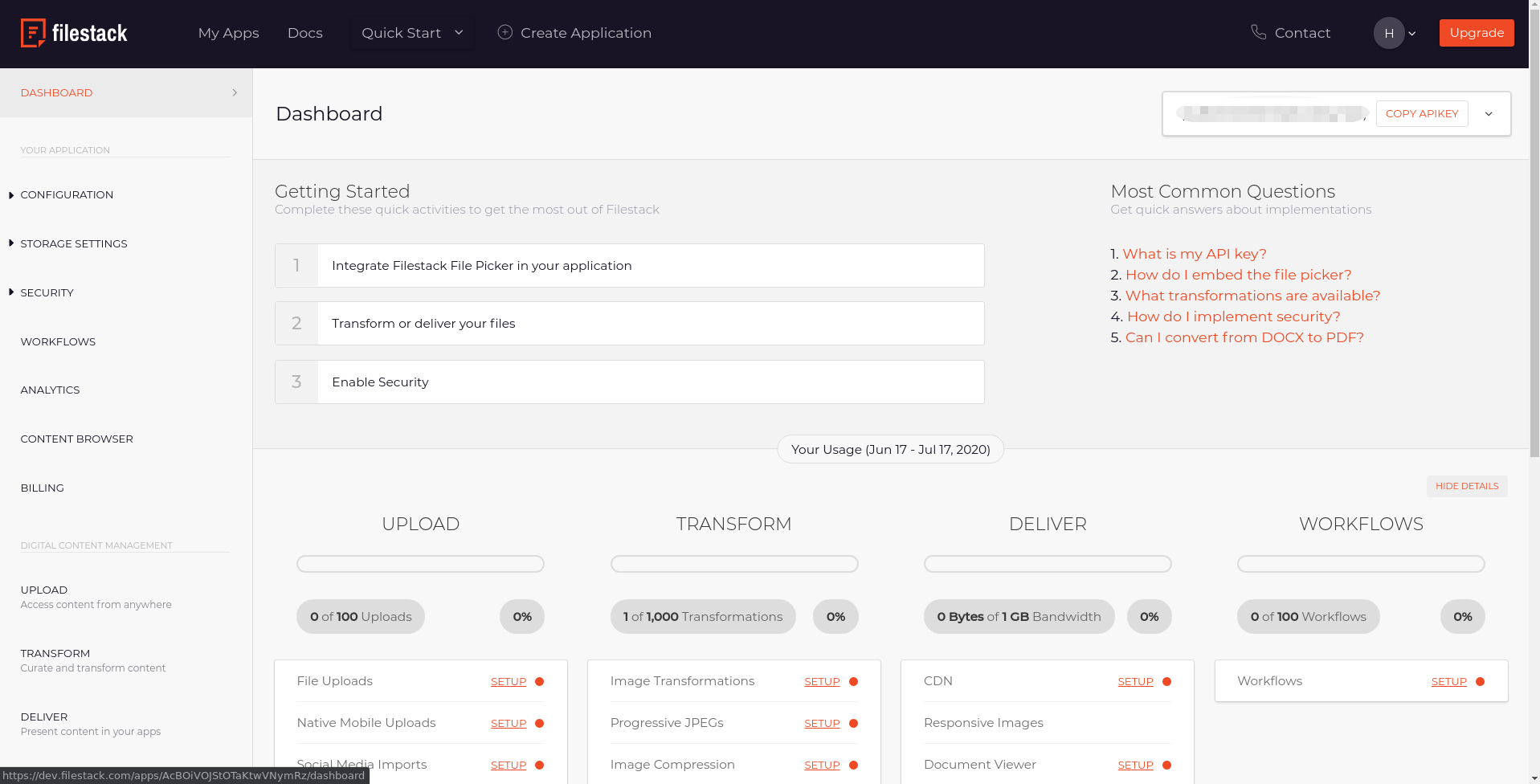
Application and API key
Once you have an account, you can begin creating applications. Each application is given a public API key and a secret key, which are used throughout Filestack to authenticate and authorize operations on your resources.
Having an API key gives you access to upload and transform files using Filestack. In addition, each application has configuration settings that apply only to it, so you can create multiple applications for varying use cases.